[Use Case] Using Flymon with MEGACOM Firewall to Bypass the iOS 17 km Flight Limit
Before You Begin - Basic Tips
-
iOS has a built-in coordinate calibration mechanism. Within a certain range of your real cellular base station location, the system will prioritize and trust the simulated coordinates.
-
This safe distance has a radius of approximately 17 km. Once you exceed this distance, the system may recognize it as an abnormal location change.
-
By using FLYMON together with MEGACOM Firewall, you can travel beyond the 17 km iOS limitation.
-
When MEGACOM Firewall is set to green CONNECTED, the Flymon Center app cannot perform location searches. This is completely normal, as location services are masked by the system.
-
If you need to search for a location, please switch MEGACOM Firewall to red DISCONNECTED first. Search and save your target coordinates, then re-enable the firewall.
If this is your first time using MEGACOM Firewall, please read the setup guide first:
https://flymonpro.com/tutorial-center/megacom-firewall-guide


Setup Process - Please Follow in Order
Step 1: Save the Coordinates in Advance
1.Make sure MEGACOM Firewall is in DISCONNECTED status at this time.
2.Open the Flymon Center App and complete device connection.
3.Record the coordinates of your destination by either copying the coordinates or tapping “💾 Save to Favorites”.
- Method 1: Copy Coordinates
Enter the location name (e.g., Tokyo) in the Search Bar.
After the search completes, copy the coordinates.
- Method 2: Save to Favorites
Enter the location name (e.g., Tokyo) in the Search Bar and tap “💾 Save to Favorites”.
Next time, you can select the location directly from “Favorites” without searching again.
You can also rename saved coordinates directly within “Favorites”.

Step 2: Enable MEGACOM Firewall

Step 3: Select the Target Location
1.Return to the Flymon Center App.
2.Paste the previously copied coordinates into the Search Bar,
or tap “Favorites” to select a saved location.
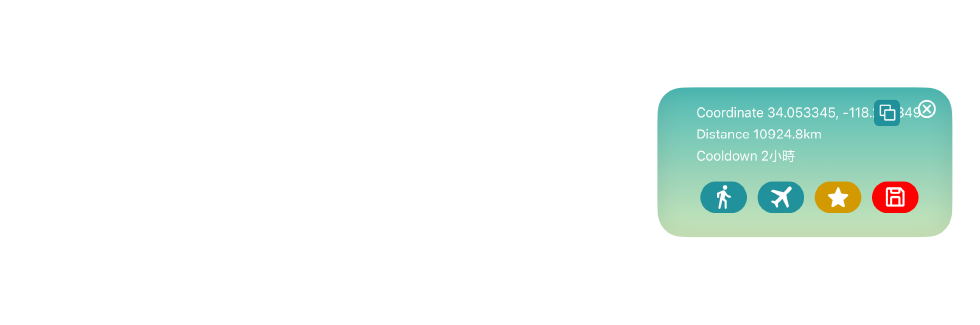
3. The map will display the coordinates and show an info window with location details.
Step 4: Travel to the Target Location
1.Tap “Fly To.”
2.The system will update your location to the selected coordinates.
3.At this point, the movement is not yet complete.
Updating and resetting Location Services is required. Please proceed to the next step.

Step 5: Reset iOS Location Services — Critical Step
This step forces the system to apply the new location. Please follow in order:
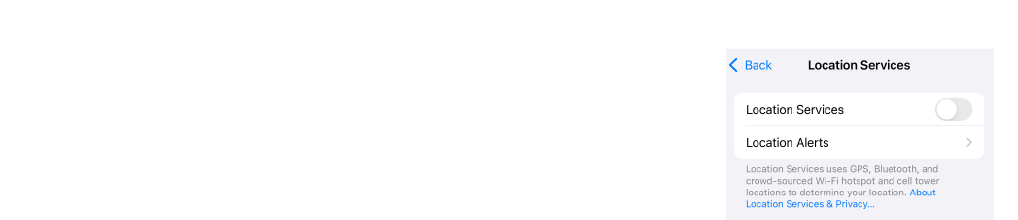
1.Open iPhone “Settings”
2.Go to “Privacy & Security”
3.Tap “Location Services”
4.Turn “Location Services” OFF for about 3 seconds, then turn it back ON
Step 6: Confirm the Location
1.Return to the Flymon Center App — the map should now display the target location.
2.Tap the “Location” button on the right side of the screen to track the updated position.
3.The cooldown timer will count down normally, but it will not be displayed on-screen — please keep track of it manually.

Quick Reminder - Cooldown Time
For a detailed explanation of the cooldown mechanism, please refer to our dedicated guide.
-
After traveling, a cooldown time will be generated based on the distance moved.
-
During this period, avoid performing any location-based interactions in the game.
-
Once the cooldown ends, you can resume normal gameplay.

Common Mistakes
- Switching MEGACOM Firewall to CONNECTED before searching for a location → ❌

- Forgetting to copy or save coordinates in advance → ❌

- Failing to reset “Location Services” after teleports → ❌

- Performing location-triggering actions during cooldown → ❌

Summary — Key Points