[Troubleshooting] Unable to Connect to Pokémon GO Plus?
Step 1: Check Bluetooth Connection Status
1. Check the Connected Devices List
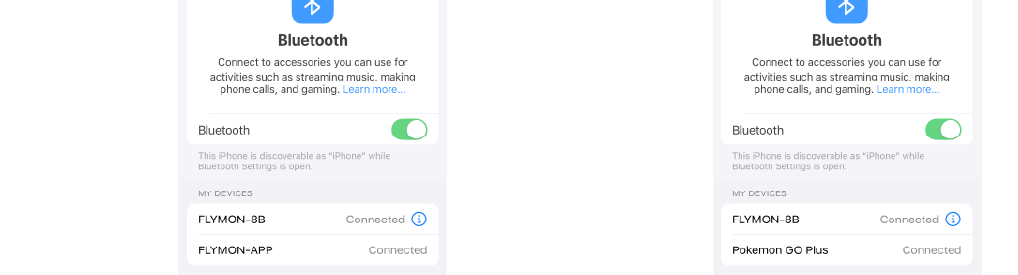
Go to your phone’s 【Bluetooth】 screen and check the "My Devices" list.
👉 If Pokémon GO Plus is missing, it indicates that "Catchmon Mode" is disabled.
2. Check Flymon Device Indicator Light
Press the "Auto Circle" button on the Flymon device
👉 If the green light starts flashing, "Catchmon Mode" is turned off.
⚠️ Cause Explanation
Flymon operates by simulating GPS and Bluetooth functionality.
When "Catchmon Mode" is currently turned off, Pokémon GO Plus Bluetooth will not be activated.
The game cannot detect the Flymon device as a result.
Step 2: Enable Catchmon Mode
1. Enable "Catchmon Mode"

👉 Press and hold the "Auto Circle" button until the green light turns off to enable "Catchmon Mode".
2. Reconnect Flymon Device

👉 Open the Flymon Center App and reconnect your Flymon device.
3. Check the Bluetooth List

👉 Go to Bluetooth "My Devices" list and confirm Pokémon GO Plus appears.
4. Finish Connection In Game
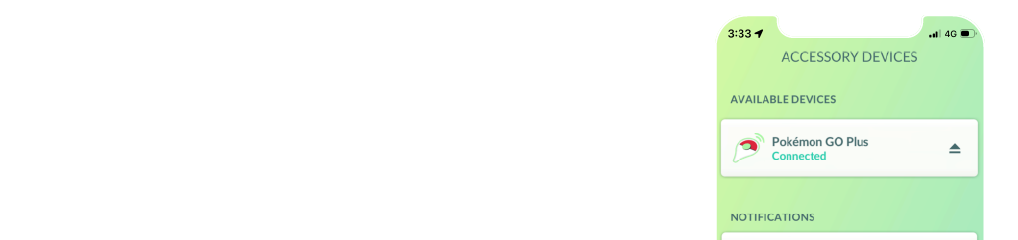
👉 Open "Pokémon GO" → "Settings" → "Connected Devices and Services" → "Accessory Devices" → "Available Devices"
Press the Flymon joystick to confirm, then tap Pokémon GO Plus to complete pairing.
Step 3: Verify Device Status
The Pokémon GO Plus+ icon will appear on the game interface. Auto Catch and Auto Spin should now function normally.
💡 Pro Tips

Avoid long-pressing the "Auto Circle" button to prevent disabling "Catchmon Mode".
If functions suddenly stop, check the "Auto Circle" light first for a flashing green signal.