Step 1: Search for the Park
-
Open the Flymon App (FM App).
-
Tap the Location Search Bar at the top.
-
Enter "Central Park".
-
Select the location and tap "✈️ Fly To" to instantly teleport to the park.

Step 2: Open the Route Window
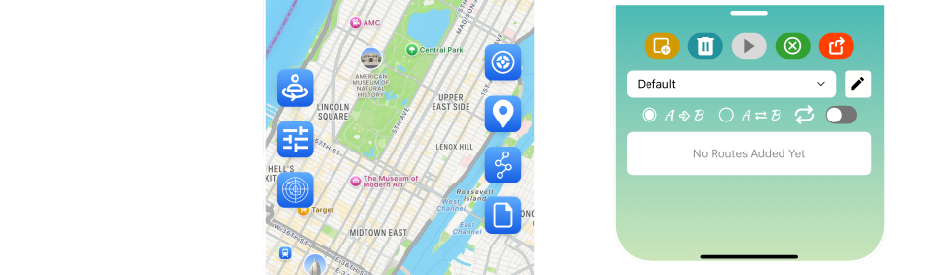
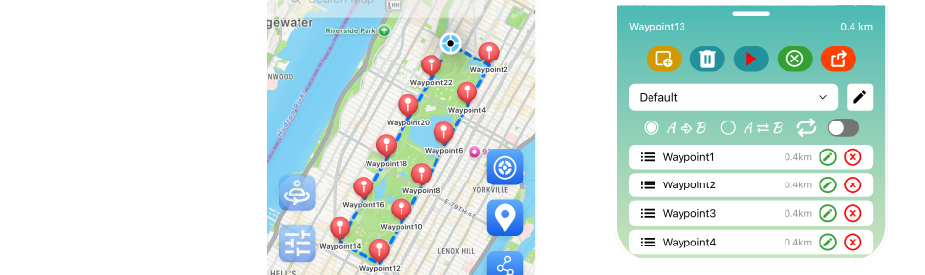
Step 3: Add Waypoints - Draw Your Path on the Map
-
Long-press your first location on the map (e.g., park entrance) to add "Waypoint 1."
-
Tap other locations to add "Waypoints 2, 3, 4..." (e.g., a loop along walking paths)
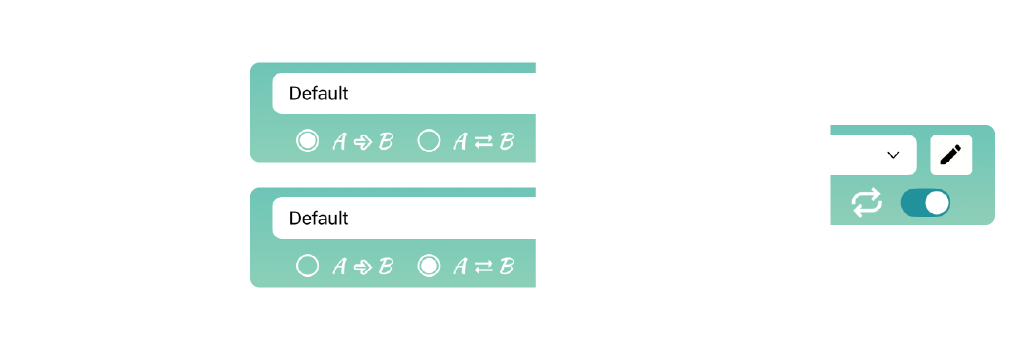
Step 4: Enable Repeat Mode - Optional
Step 5: Start Auto-Walking
-
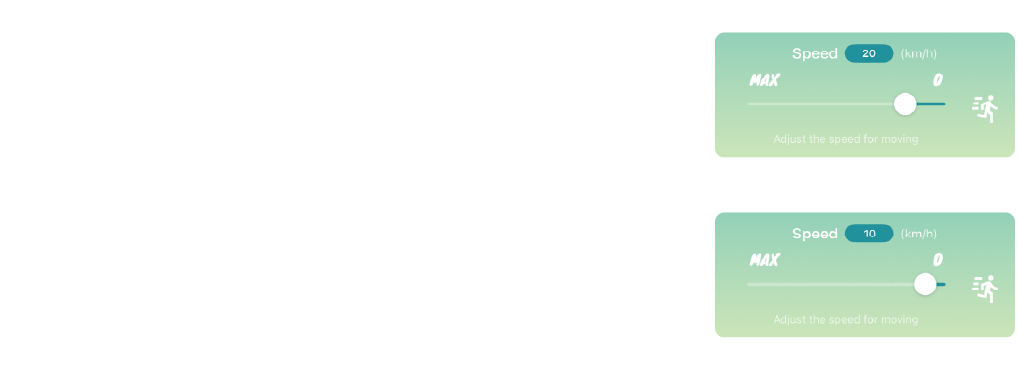
Once your route is ready, tap "🚶 Go To" to begin.
-
Your character will automatically follow the waypoints in sequence.
Step 6: Save and Manage Your Routes
-
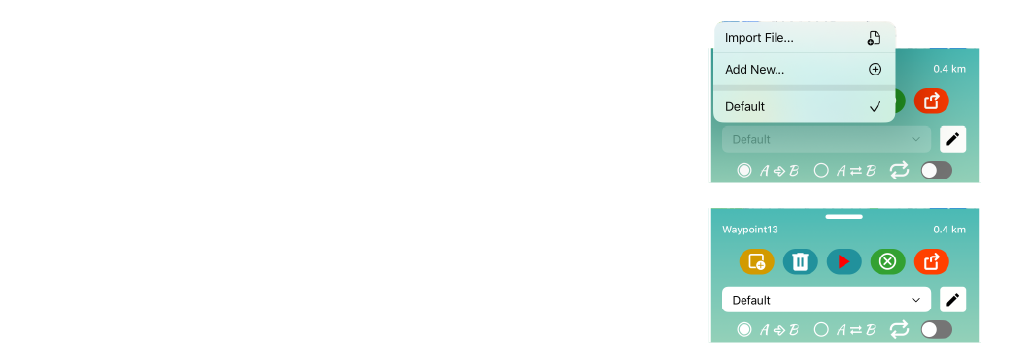
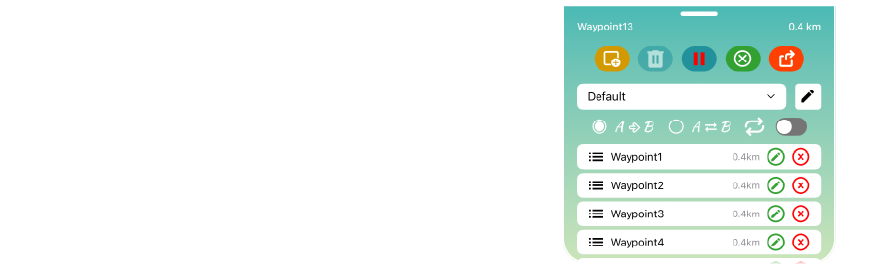
For the "Default" slot, tap 【Add】 to save your waypoints manually.
-
Alternatively, tap 【Add Route】 to start a new blank slot. Waypoints in these slots are saved automatically;
use 【Rename】 to keep your routes organized.
-
Tap 【Share】 to export a GPX file and share it with others.