[Use Case] Using Flymon with MEGACOM Firewall to Bypass the iOS 17 km Flight Limit
Before You Begin – Basic Tips
• iOS has a built-in coordinate calibration mechanism.
Within a certain range of your real cellular base station location, the system will prioritize and trust the simulated coordinates.
• This radius is approximately 17 km.
Once you exceed this distance, the system may recognize it as an abnormal location change.
• By using FLYMON together with MEGACOM Firewall, you can travel beyond the 17 km iOS limitation.
When MEGACOM Firewall is set to CONNECTED, the Flymon App cannot perform location searches.
This is normal, as the real location data is being masked by the system.
Before switching MEGACOM Firewall to CONNECTED (green), make sure you have already prepared the coordinates of your target destination.
If this is your first time using MEGACOM Firewall, please read the setup guide first:
https://flymonpro.com/zh-TW/tutorial-center/megacom-firewall

Setup Process — Please Follow in Order
Step 1: Save the Coordinates in Advance
-
Make sure MEGACOM Firewall is NOT enabled at this time.

-
Open the FLYMON App and complete device connection.

- Method 1
Enter the location name (e.g., Tokyo) in the Search Bar.
After the search completes, copy the coordinates.
Open MEGACOM Firewall and switch it to CONNECTED.
Return to the Flymon App, paste the copied coordinates into the search bar, and tap “Fly To.”
- Method 2
Enter the location name (e.g., Tokyo) in the Search Bar.
Tap 💾 “Add to Favorites.”
Next time, you can go directly from My Favorites without searching again.
You can also rename saved coordinates in My Favorites.

Step 2: Enable MEGACOM Firewall

Step 3: Select the Target Location
-
Return to the FLYMON App.
-
Paste the previously copied coordinates into the Search Bar,
or tap My Favorites to select a saved location.
-
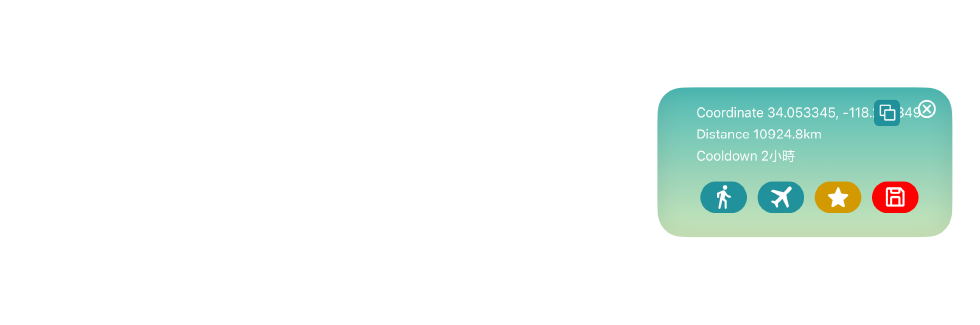
The map will display the coordinates and show an information window.
Step 4: Travel to the Target Location
-
Tap “Fly To.”
-
The system will update your location to the selected coordinates.
-
At this point, the movement is not fully applied yet.
A system refresh is required — please proceed to the next step.

Step 5: Reset iOS Location Services — Critical Step
This step forces the system to apply the new location. Please follow in order:
-
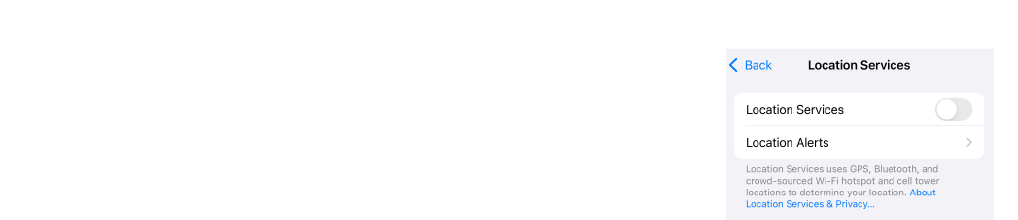
Open iPhone Settings
-
Go to Privacy & Security
-
Tap Location Services
-
Turn Location Services OFF for about 3 seconds, then turn it back ON
Step 6: Confirm the Location
-
Return to the FLYMON App — the map should now display the target location.
-
Tap the Location button on the right side of the screen to track the updated position.
-
The cooldown timer will count down normally, but it will not be shown on-screen — please monitor it manually.

Quick Reminder — Cooldown Time
For a detailed explanation of the cooldown mechanism, please refer to our dedicated guide.
• After traveling, a cooldown time will be generated based on the distance moved.
• During this period, avoid performing any location-based interactions in the game.
• Once the cooldown ends, you can resume normal gameplay.

Common Mistakes
- Enabling MEGACOM Firewall before searching for a location→ ❌

- Forgetting to copy or save coordinates first→ ❌

- Failing to reset Location Services after "Fly To"→ ❌

- Performing in-game actions during cooldown→ ❌

Summary — Key Points


