[Troubleshooting] Why Does My Location Sometimes Snap Back to My Real Location?
1. Most Common Cause: Using Wi-Fi Causes Your Location to Be Locked
FlyMon works by overriding your phone’s GPS location.
However, if you are using Wi-Fi:
👉 Your phone also references Wi-Fi networks for positioning.
👉 This may cause the system to prioritize your real location
👉 As a result, your location may snap back
✅ Solution:
-
Switch to mobile data ( 4G / 5G )

-
Turn off Wi-Fi and try again

2. Location Permission Not Set to “Always”
If FlyMon does not have continuous access to location permissions:
👉 iOS may automatically correct your location in the background
👉 This can cause your spoofed location to be overridden by the system
✅ How to check:
1. Go to Settings

2. Find FlyMon App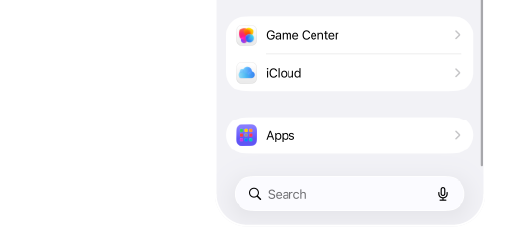
3. Tap Location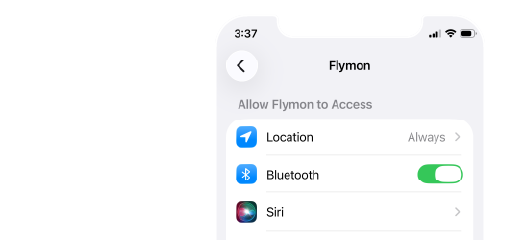
4. Set it to "Always"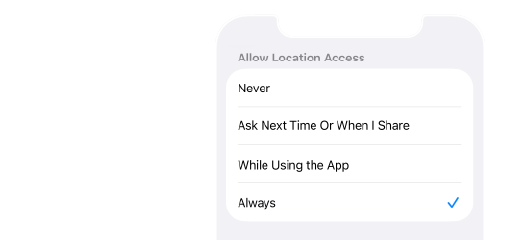
3. Systems updated to iOS 26.0.1
👉 Systems updated to iOS 26.0.1, turn off specific options to make location spoofing / movement within 15km much more stable!
*If you encounter issues where the location cannot move, teleport, or the phone location cannot be found, you can repeat this step here: turn off Location Services for 5 seconds and then turn it back on.
1.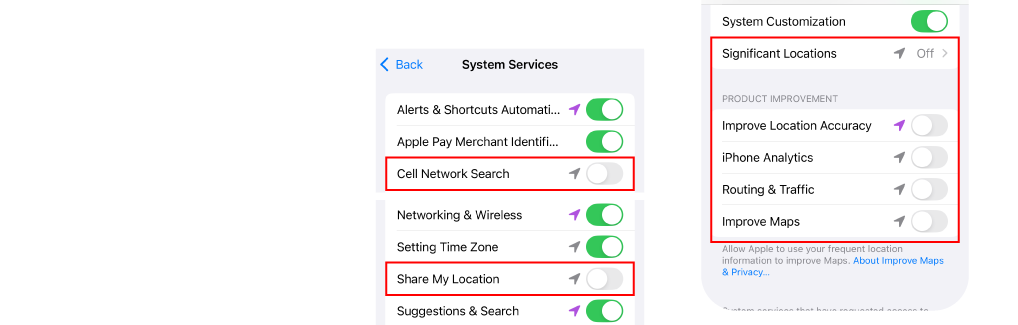
Settings > Privacy & Security > Location Services > System Services
Share My Location > Turn Off
Cellular Network Search > Turn Off
Significant Locations > Turn Off
Improve Location Accuracy > Turn Off
Routing & Traffic > Turn Off
iPhone Analytics > Turn Off
Improve Maps > Turn Off
2.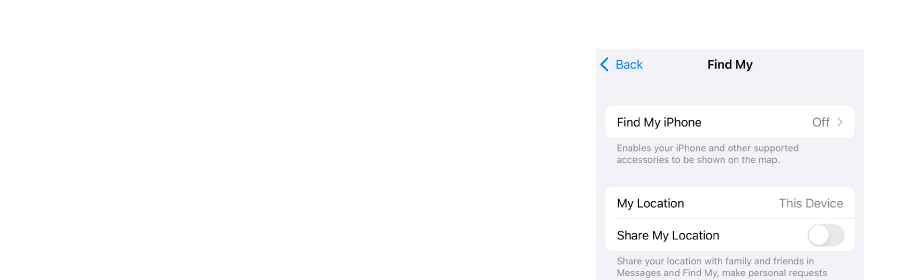
Settings > Privacy & Security > Location Services > Share My Location
Share My Location > Turn Off
3.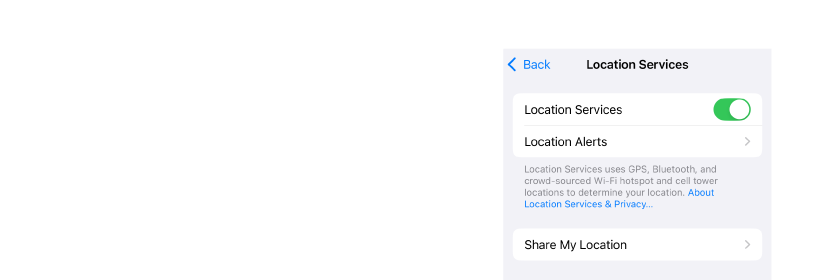
Settings > Privacy & Security > Location Services
Location Services > Turn Off > Wait for 5 seconds > Turn On
4. Environmental Interference - Strong GPS Signal
In certain environments, your phone may force a correction to the real GPS location. This can cause your spoofed location to be overridden, particularly in:
- Open outdoor areas
- Rooftops of tall buildings
- Locations with very strong GPS signals
✅ Solution:
- Slightly change your position by moving indoors or to a covered area.
- Re-apply the location after changing your environment
- Avoid operating in areas with extremely strong GPS signals
5. Moving Beyond the iOS Distance Limit - Approx 15 km
When using movement modes such as Walking, Teleport, Routes, Auto-Circle
👉 If your final location exceeds the iOS limit (approx. 15 km)
👉 The system may detect it as abnormal positioning
👉 And force your location to snap back to your real coordinates
⚠️ Important:
This limit is based on "Real Location vs. Final Location", not the distance of each individual movement
Real Location: Refers to the device's real GPS position.
Movement Range: Once enabled, the map displays a safe movement zone centered on your current "Real Location", with a radius of approximately 15 km.

✅ Solution: Use MEGACOM Firewall
👉 When you need to move beyond 15 km, It is recommended to use MEGACOM Firewall
Capabilities:
- Stabilizes virtual location
- Prevent location snap-back
- Supports long-distance movement (Regional & International)