MEGACOM Firewall Setup Guide
⚠️ IMPORTANT - Read Before Use
* Note:
When using the Long-Distance Travel feature, always pay attention to the cooldown time and check your in-game status.
• Do not perform any in-game actions during cooldown.
• Do not enable any automation features (such as Auto-Catch or Auto-Spin).
Improper use may cause abnormal game behavior. Please proceed with caution.
Steps
Step 1: Download MEGACOM Firewall

1. Go to the App Store.

2. Search for and download MEGACOM Firewall.

3. Open the MEGACOM Firewall app.

4. Tap the red switch to turn it green (CONNECTED).

5. On first launch, iOS will prompt you to “Allow VPN” → Tap “Allow”.
This is a standard iOS VPN permission request and is required for proper operation.

* Step 2: Set iPhone Location Privacy

This step prevents the system from sending your real location externally and is critical for stable Flymon virtual positioning.
This prevents iOS from syncing your real location to the system or other services. Please follow these steps in order.
1. Open "Settings" on iPhone.

2. Go to "Privacy & Security"

3. Tap "Location Services"

4. Select "Share My Location"

5. Turn "Share My Location OFF"

* Step 3: Reset Location Services

1. Return to Privacy & Security.

2. Tap Location Services.

3. Turn Location Services OFF for 3 seconds, then turn it ON again.

✅ After completing these steps, location services will be re-initialized, allowing Flymon to operate beyond flight distance limits.
Example: Search and Fly to a Specific Location (e.g., Tokyo)
⚠️ Note
When MEGACOM Firewall is CONNECTED, the Flymon App cannot search for locations.
If you already have the target coordinates, you may skip to Step 3 and keep it CONNECTED.
Step 1: Turn OFF MEGACOM Firewall first (Required)
- If you need to search for a location, switch MEGACOM Firewall to DISCONNECTED mode.
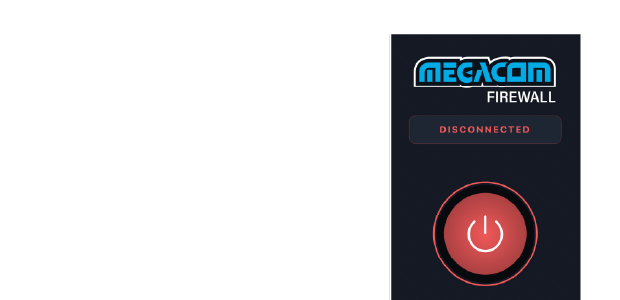
Step 2: Search for the location in the Flymon App

1. Make sure Flymon is connected to your phone via Bluetooth.

2. Open the Flymon App

3. Enter the location name in the search bar, for example: Tokyo.

4. After the search is complete, copy the coordinates of that location.

Step 3: Enable MEGACOM Firewall and paste the coordinates

1. Open MEGACOM Firewall and set it to CONNECTED.

2. Return to the Flymon App.

3. Paste the copied coordinates into the search bar.

4. Tap "Fly To"

⚠️ The location will not change immediately at this stage. Please proceed to the next step.
Step 4: Reset Location Services again (Required)

Finally, reset Location Services once more:
1. Go to Settings → Privacy & Security

2. Tap Location Services

3. Turn Location Services OFF for 3 seconds, then turn it ON again

4. Open Flymon App and tap "Return to Location" to track your new position.

✅ Done! Your location will now be locked to the newly set position.