[Troubleshooting] Unable to Connect to Pokémon GO Plus?
Step 1: Check Bluetooth Connection Status
1. Check the Connected Devices List
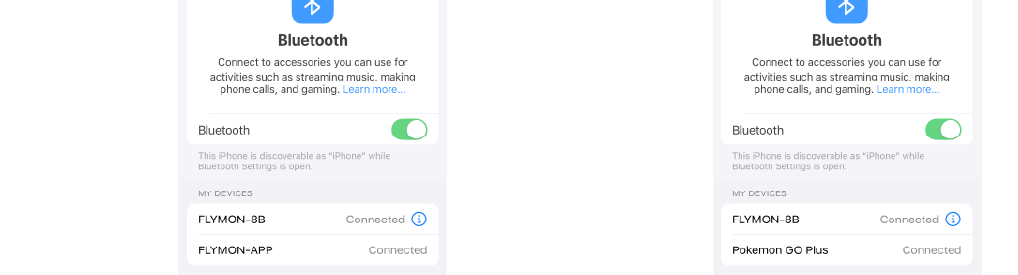
Go to your phone’s Bluetooth settings and check the "My Devices" list.
👉 If Pokémon GO Plus is missing, it means Auto Catch Mode is not enabled.
2. Check Flymon Device Indicator Light

Press the "Auto Circle" button on the Flymon device
👉 If the Green Light stays solid, it confirms that Auto Catch Mode is turned OFF.
⚠️ Cause Explanation
Flymon operates by simulating GPS and Bluetooth functionality.
When Auto Catch (GO Plus mode) is currently turned OFF, Pokémon GO Plus Bluetooth will not be activated.
The game cannot detect the Flymon device as a result.
Step 2: Enable Auto Catch Mode
1. Turn OFF "Auto Circle" Mode

👉 Press and hold the "Auto Circle" button until the green light turns off to enable Auto Catch Mode.
2. Reconnect Flymon Device

👉 Open the Flymon App and reconnect your Flymon device.
3. Check the Bluetooth List

👉 Go to Bluetooth "My Devices" list and confirm Pokémon GO Plus appears.
4. Finish Connection In Game
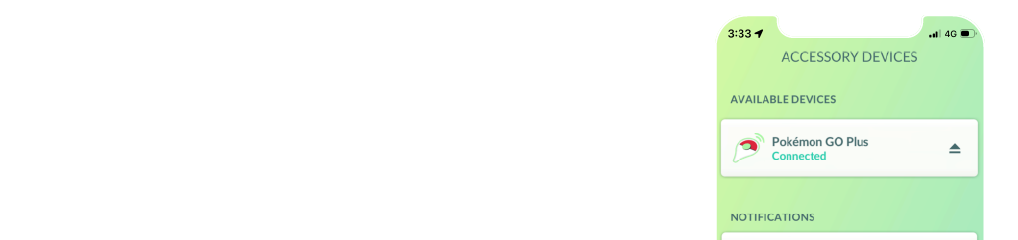
👉 Open Pokémon GO → Settings → Connected Devices and Services → Accessory Devices → Available Devices
Tap Pokémon GO Plus to complete pairing.
Step 3: Verify Device Status
The Pokémon GO Plus+ icon will appear on the game interface. Auto Catch and Auto Spin should now function normally.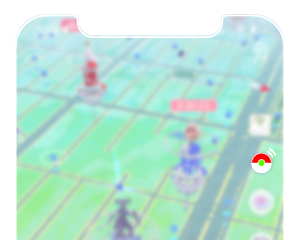
💡 Pro Tips

Avoid long-pressing the "Auto Circle" button to prevent disabling Auto Catch Mode.
If functions suddenly stop, check the "Auto Circle" light first for a solid green signal.